Console Mode 1.6: your PC as a console, one click away
Console Mode started from a very specific thing I wanted: sit on the couch, grab a controller and use my PC like a console — without getting up to switch displays, audio outputs, resolutions or recover some window lost on the desktop.
With 1.6, the project is much closer to that.
The idea today is simple: one action temporarily turns a desktop setup into a console setup. The TV takes over, the other monitors get out of the way, audio switches, your game interface launches, and most of the session can be controlled from the gamepad.
When you are done playing, the process runs in reverse and the desktop comes back the way it was.
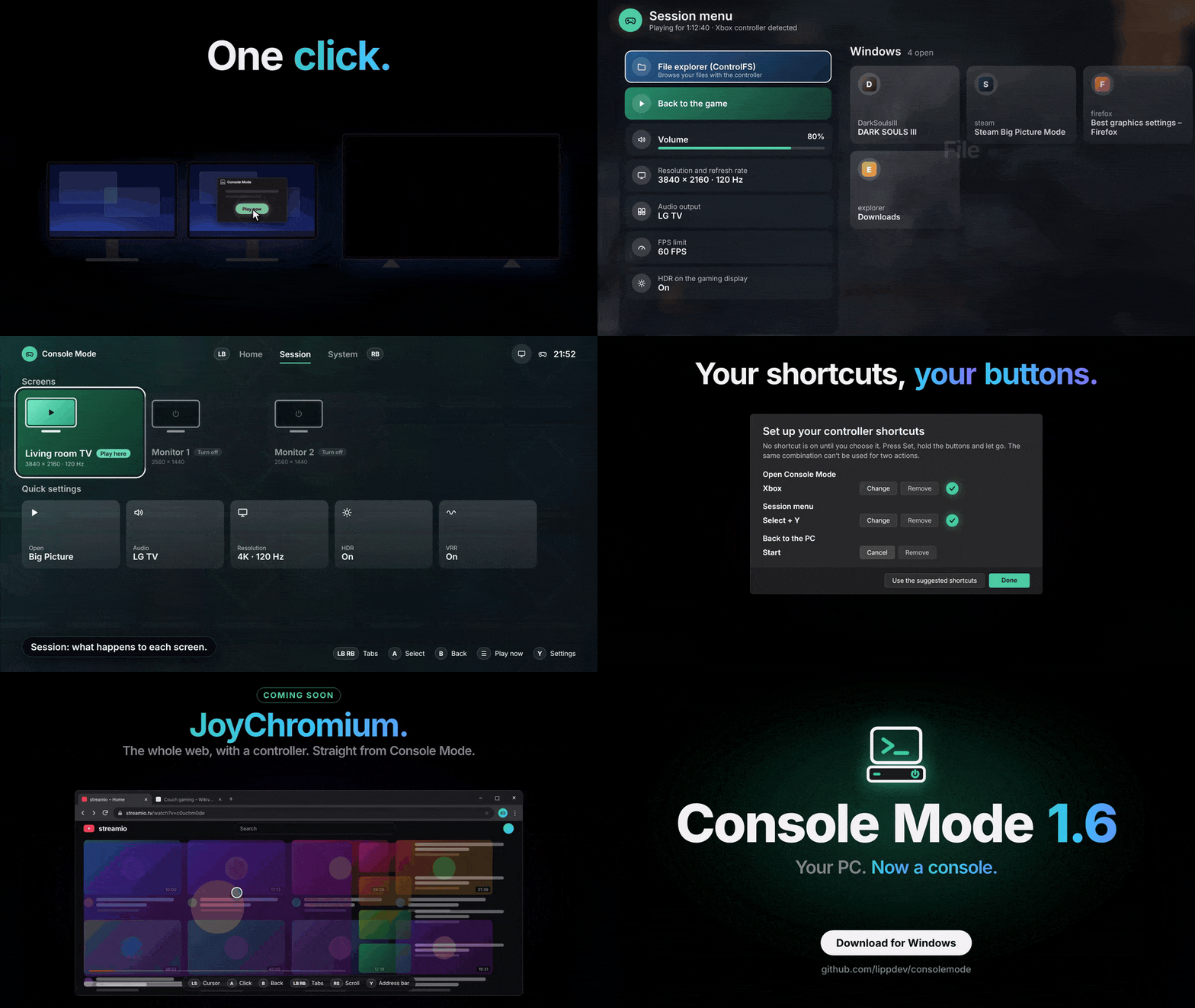
A PC that changes modes
The basic flow is intentionally simple.
Pick the display you want to play on and press Play now — or start it from the controller, a shortcut, Stream Deck or another automation.
From there, Console Mode can:
- focus your TV or gaming display;
- turn off or hide the other monitors;
- change resolution and refresh rate;
- enable HDR and VRR;
- switch the audio output;
- apply an FPS limit;
- launch Steam Big Picture, Playnite fullscreen or Xbox;
- and even turn on a Google TV / Android TV and switch it to the PC input automatically.
All of that becomes a session.
When the session ends, Console Mode restores the setup: displays, orientation, resolution, audio and the rest of the configuration go back to where they were.
1.6 is much more usable from the controller alone
That was one of the biggest focuses of this release.
The Console interface was redesigned to actually work from the TV. It now has Home, Session and System tabs, LB/RB navigation, Xbox and PlayStation controller support, interface sounds and even Steam library covers as the background.
But the biggest change to the experience is the new session menu.
While a game is running, you can open an interface over it and access:
- open windows;
- volume;
- audio output;
- resolution;
- HDR;
- FPS limit;
- FPS counter;
- file explorer;
- session exit.
In practice, the window list works like an Alt + Tab built for a controller. If something opens behind the game, you do not need to go back to the mouse and keyboard just to find it.

ControlFS: a file explorer for the controller
Version 1.6 also integrates ControlFS, a file explorer designed around gamepad navigation.
It opens directly from the session menu.
The goal is not to replace Windows Explorer on the desktop. It is to solve those moments when you are sitting away from the PC with a controller in your hands and need to reach a file without breaking the whole console experience.
If ControlFS is not installed yet, Console Mode can start the installation from there.
FPS, HDR, VRR and resolution during the session
Console Mode now controls more of the gaming environment as well.
Per display, you can configure:
- resolution;
- refresh rate;
- HDR;
- VRR;
- FPS limit.
With RTSS installed, Console Mode can also show an FPS counter over the game, with Compact, Detailed or custom layouts.
All of it remains accessible from the controller while the session is running.
Your shortcuts, your buttons
In 1.6, no controller shortcut is forced on by default.
The first time you run it, you choose which buttons should:
- enter Console Mode;
- open the menu while playing;
- return to the PC.
The app also prevents the same button from being assigned to two different actions.
One possible setup is:
- hold Home → enter Console Mode;
- Select + Y → open the session menu;
- Start + Select → return to the desktop.
But the combinations are entirely up to you.
It can be automated too
Console Mode does not have to be launched from its interface.
It supports links such as:
consolemode://start
consolemode://stop
consolemode://menu
That makes it easy to integrate with Stream Deck, scripts, shortcuts or other automations.
There is also a local control API, so Console Mode can be just one piece of a larger setup.
The end goal is that you can reach the point where turning on the PC and entering your "console mode" does not require manually navigating Windows at all.
What happens to the other monitors?
There are different ways to get the other displays out of the way during a session.
Depending on the display and configuration, Console Mode can:
- logically disconnect it through Windows;
- place a black overlay over it;
- or control it through DDC/CI.
Display and audio management use Windows' own APIs, with no third-party display or audio tools bundled with the app.
Getting back safely has always been a priority.
The first time a new display configuration is applied, for example, Console Mode asks whether you can still see the screen. If nobody answers, it automatically reverts the change.
What I want Console Mode to become
I am not trying to build another game launcher.
Steam and Playnite already do that very well.
Console Mode is trying to solve the layer between Windows and those launchers: turn a computer that normally lives on a desk with several monitors and peripherals into something that temporarily behaves like a console in the living room.
And then put everything back.
There is still a lot I want to explore — JoyChromium for browsing the web with a controller, recording the last 30 seconds, per-game profiles, HDMI-CEC, more languages and other ideas — but 1.6 is the first release where I feel the experience is really starting to close the loop.
Install
With winget:
winget install lippdev.ConsoleModeOr download 1.6.0 from the releases page.
The installer is per-user, requires no admin privileges and updates itself. If you are already on 1.5, the app offers the update and keeps your settings.
The project is open source and all of the code is available on GitHub.